

Let's get you into your website!
To log in to your website content management system, simply visit your website address, for example;
www.yourwebsite.co.uk
Then add "/admin" at the end, like so;
www.yourwebsite.co.uk/admin
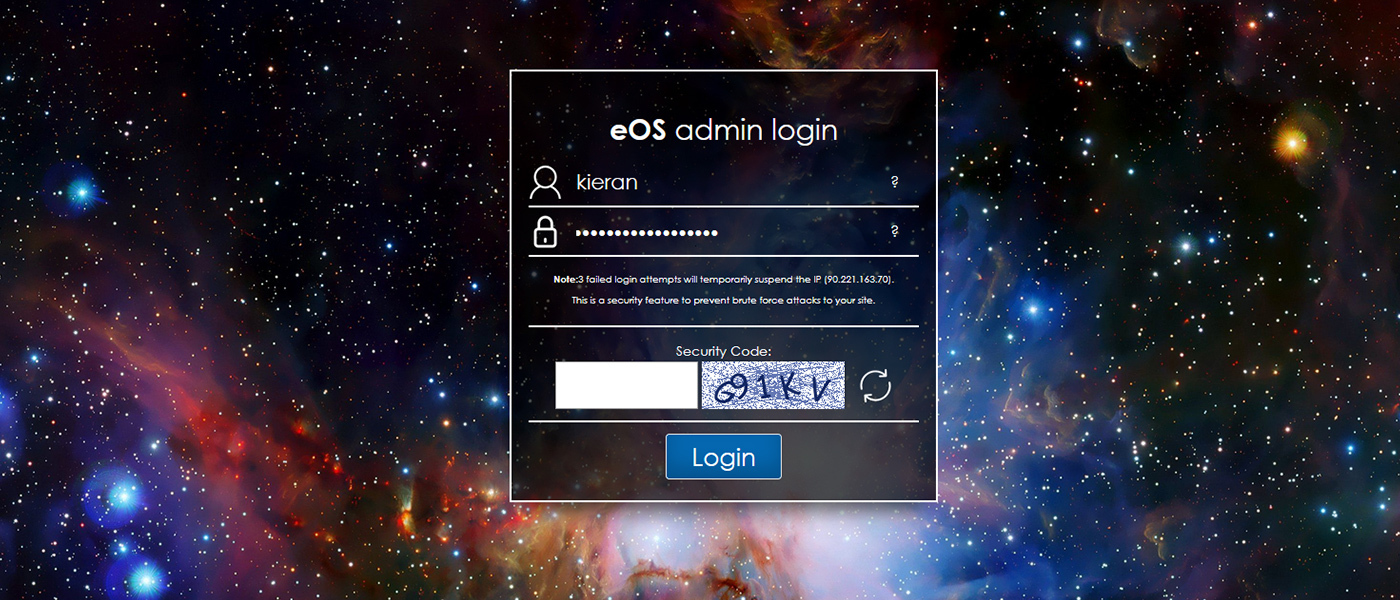
Once here, you will be asked for your username and password.
Be sure to tick or enter the security check as applicable.
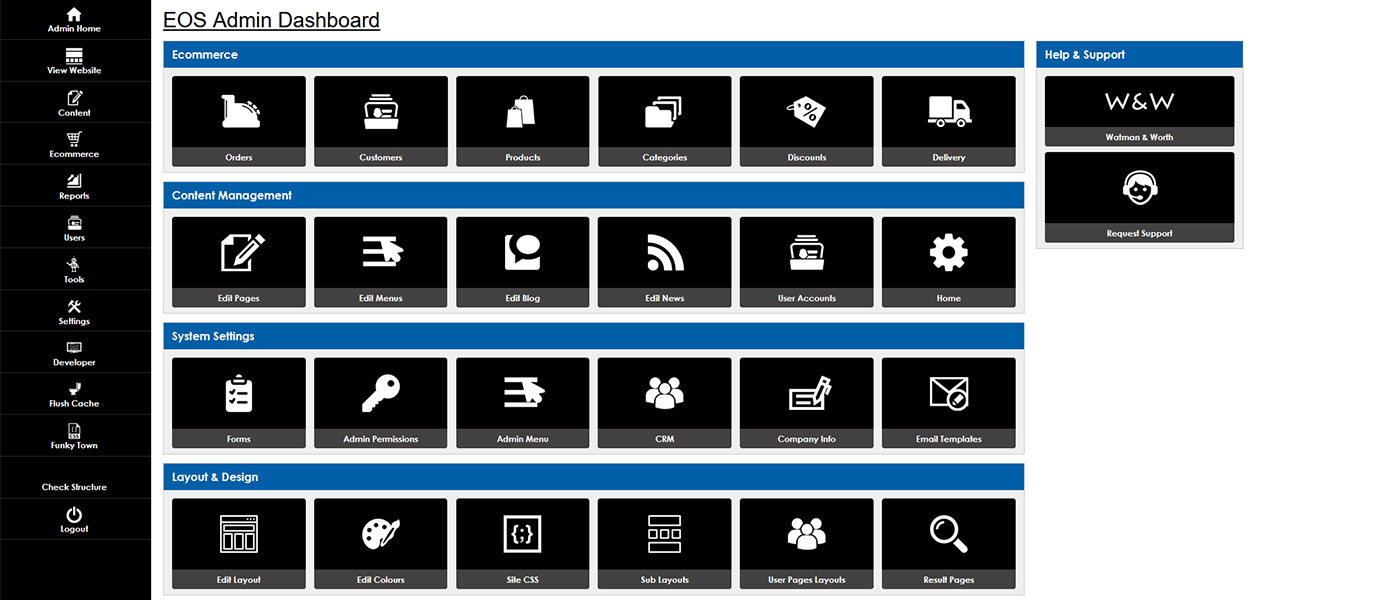
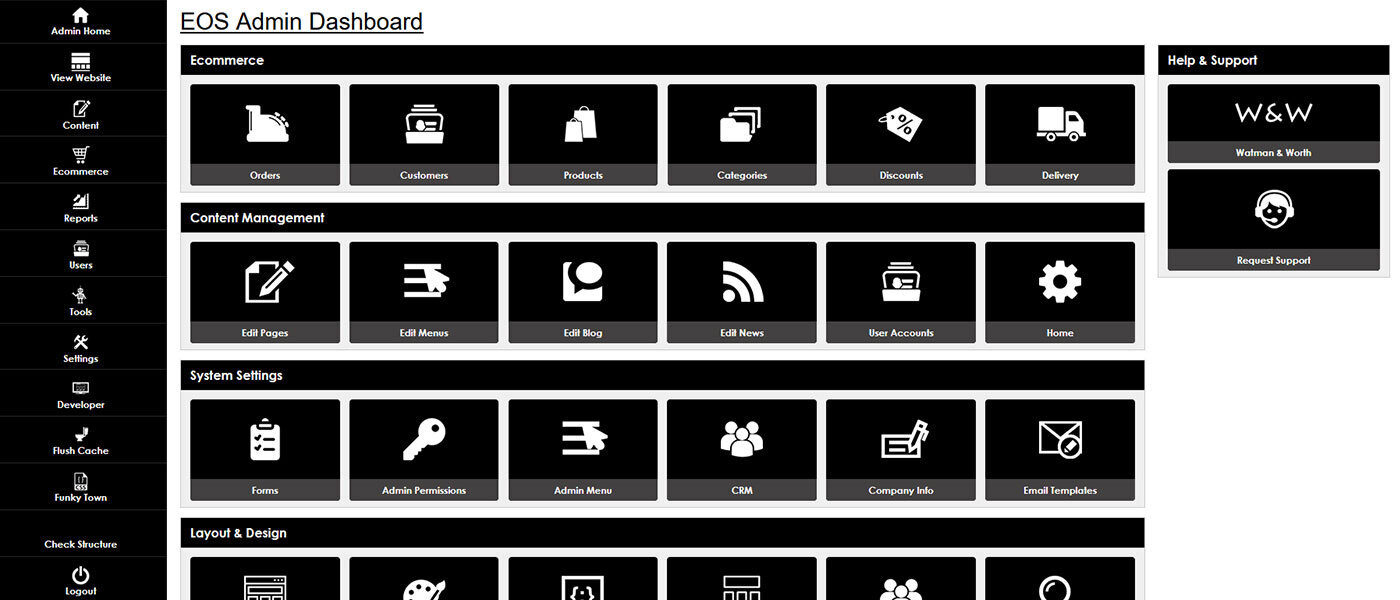
Once you have entered your details, click login, and you will be taken into your admin area.
Please note;
3 incorrect attempts will result in an IP block for security reasons, and you will need to request a lift on the block before continuing.
If you are logging into your admin area for the first time from a new device or browser, you will need to confirm your login.
When you enter your details and attempt to log in, you will be sent a link to your registered email address to confirm the device. Once you have confirmed this device/browser, you will be able to log in as normal moving forward.
If you have locked yourself out of your admin area and need a password reset, please drop us a message here